Administrator Guide
Welcome to TimberView!
You have been granted administrator rights to the TimberView system. The Admin Home displays the available tools and any new Foresters who are awaiting approval.
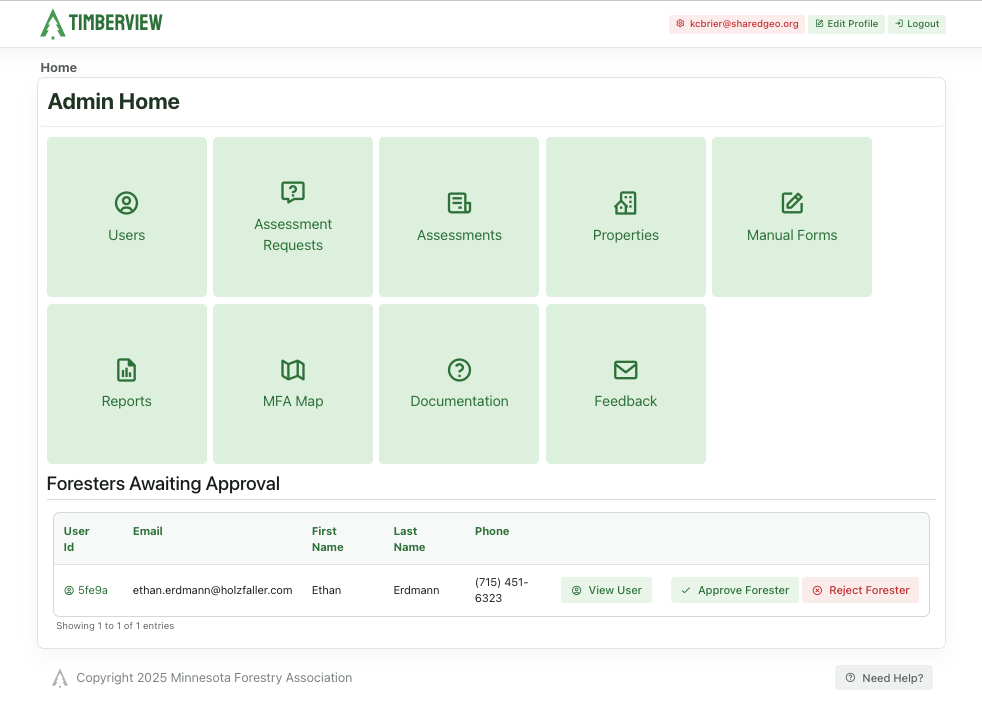
Admin Menu
User Management
You can view all users by default, or select one of the other tabs to view users by role: Landowner, Forester, Admin.
Search by first or last name or click a column heading to sort in ascending order. Click again to toggle to descending order. The arrow next to the column name will indicate how the data is sorted and whether sorted in ascending or descending order.
The number of users configured is displayed at the bottom left. Use the pagination controls (arrows) at the bottom right to scroll forward or backwards through all pages.
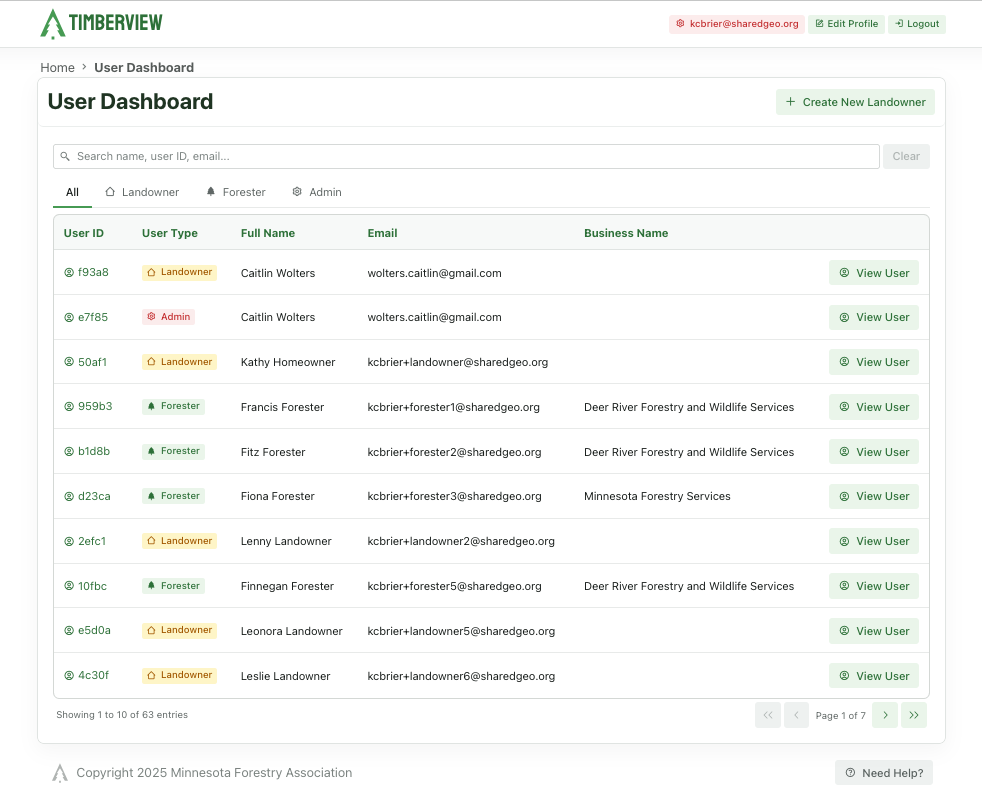
User Management
Click the + Create New Landowner button to add an offline landowner and their property. These landowners cannot log in and must be managed from the admin menu.
Click the View User icon next to a user to open their profile. You can edit their profile, or modify a property. You can also Create Property from their profile.
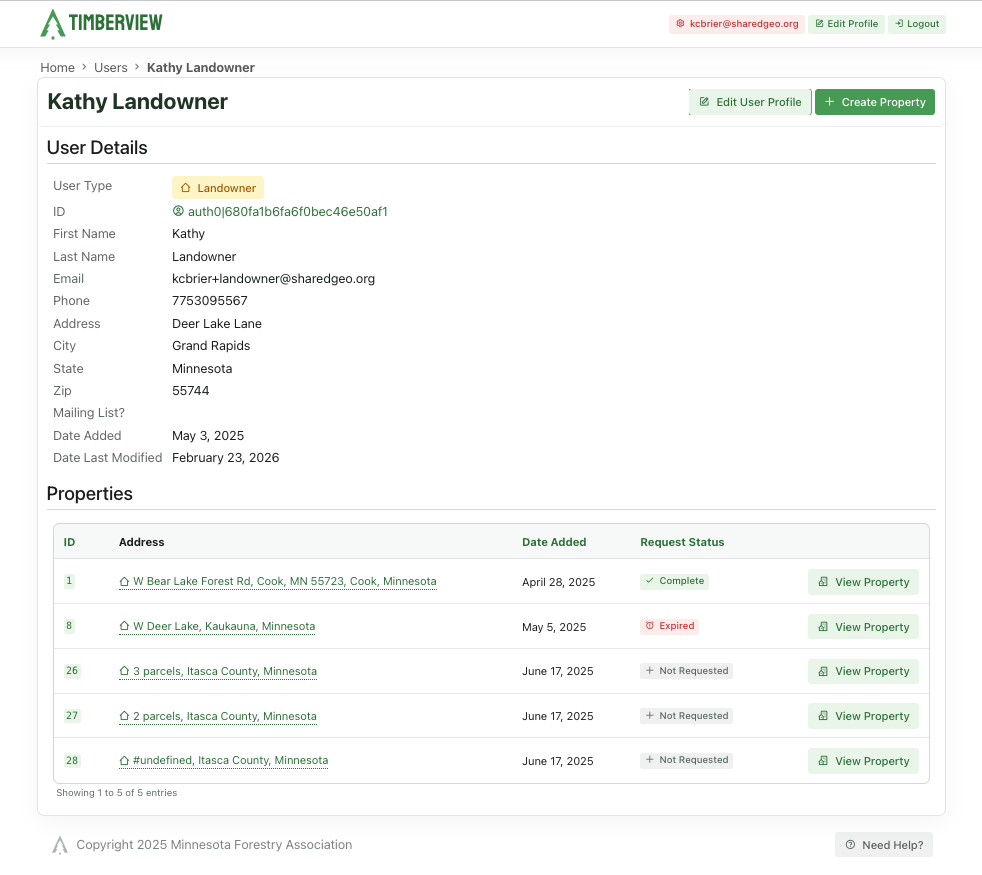
UserProfile
Assessment Requests
Shows a list of properties that have requested assessments in the last 90 days and their assignment status. When you assign the property to a forester, it allows that forester to view the property and contact the landowner. Once the assessment is complete, the request and the assessment can be found on the assessment dashboard.
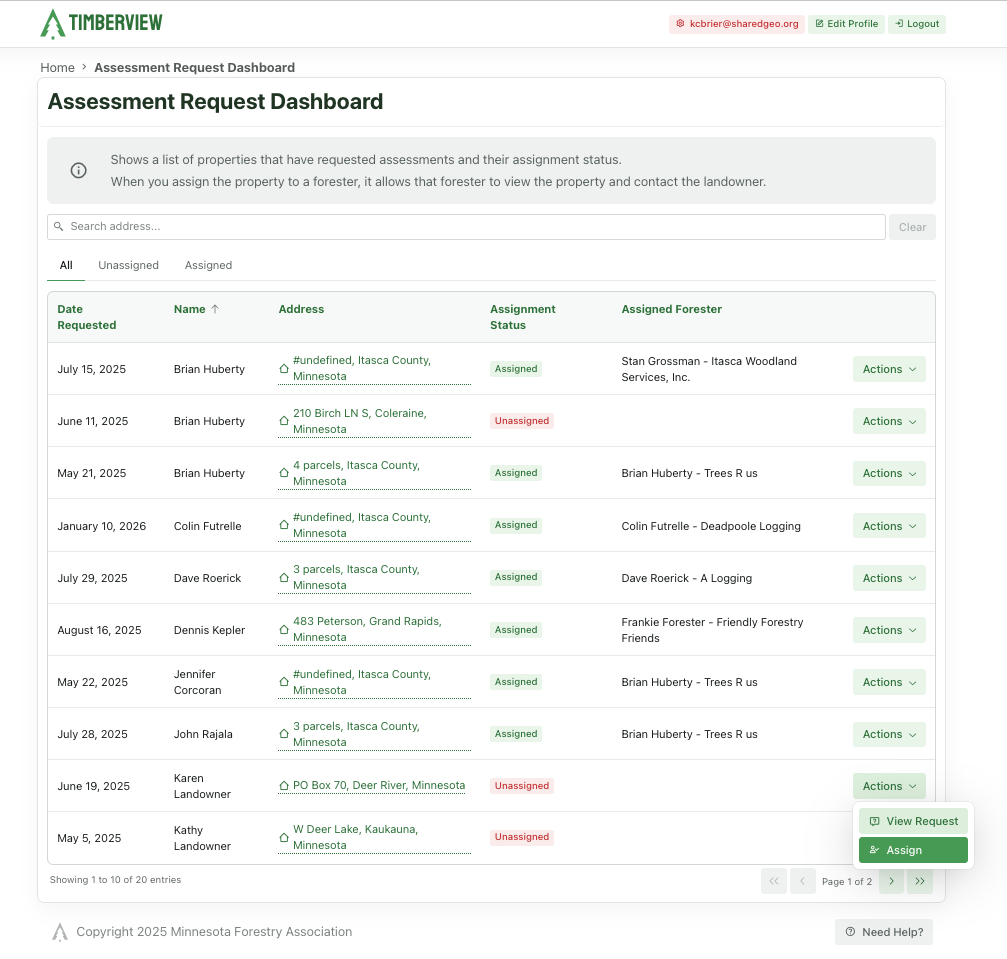
Assessment Requests
From the Actions dropdown you can view the assessment or assign the request to a forester.
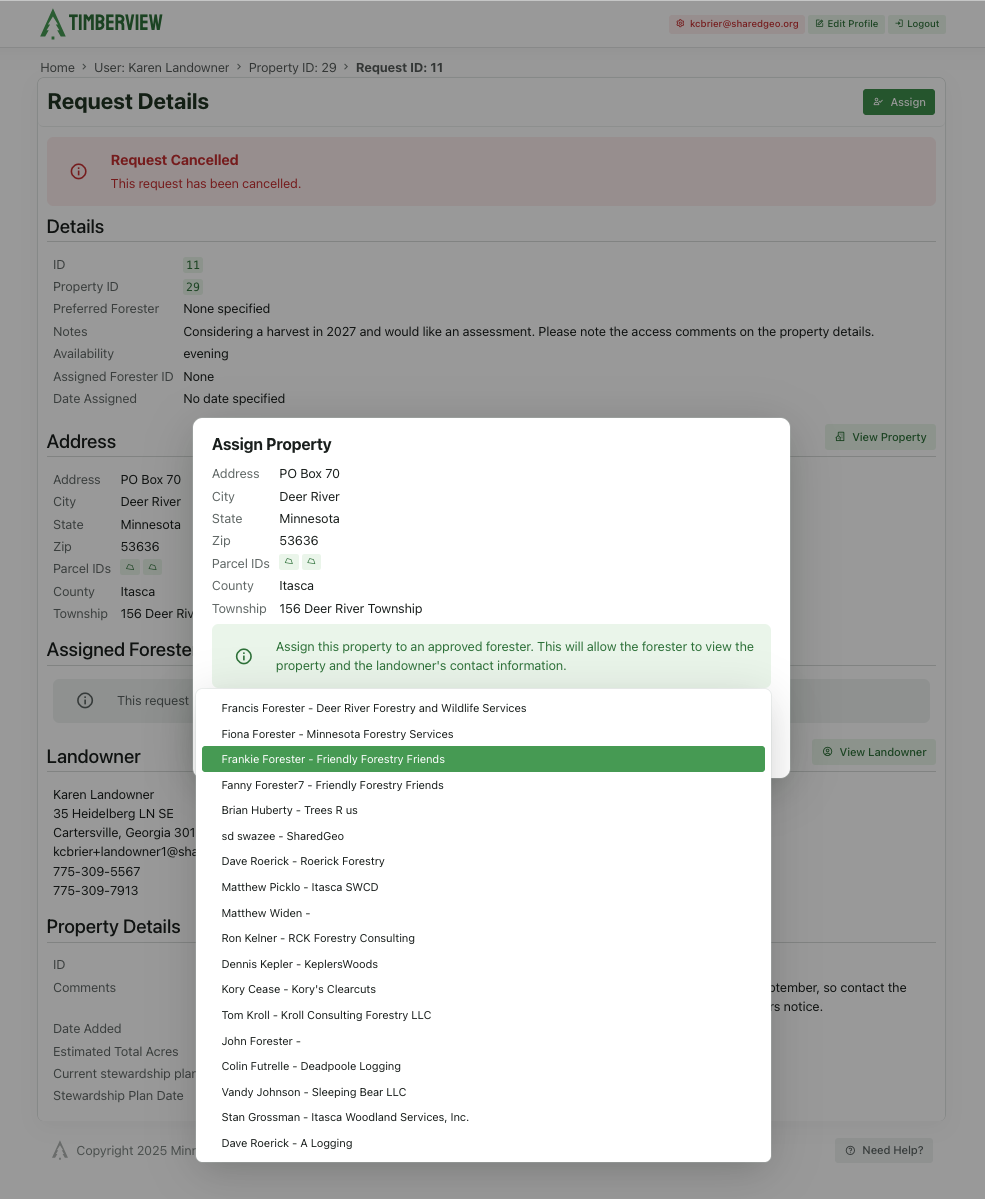
Request Details
From the request details page, you can view the property details, the landowner profile, and assign the request to a forester or reassign if needed.
Hint
When you unassign a property from a Forester, it’s deleted from their user profile and the request goes back into the Assessment Request list to be assigned again.
Completed Assessments
The assessment dashboard displays all completed assessments. From the Action menu you can view all the details about an assessment, the property, the landowner, and the forester. Assessments cannot be edited or deleted once submitted.
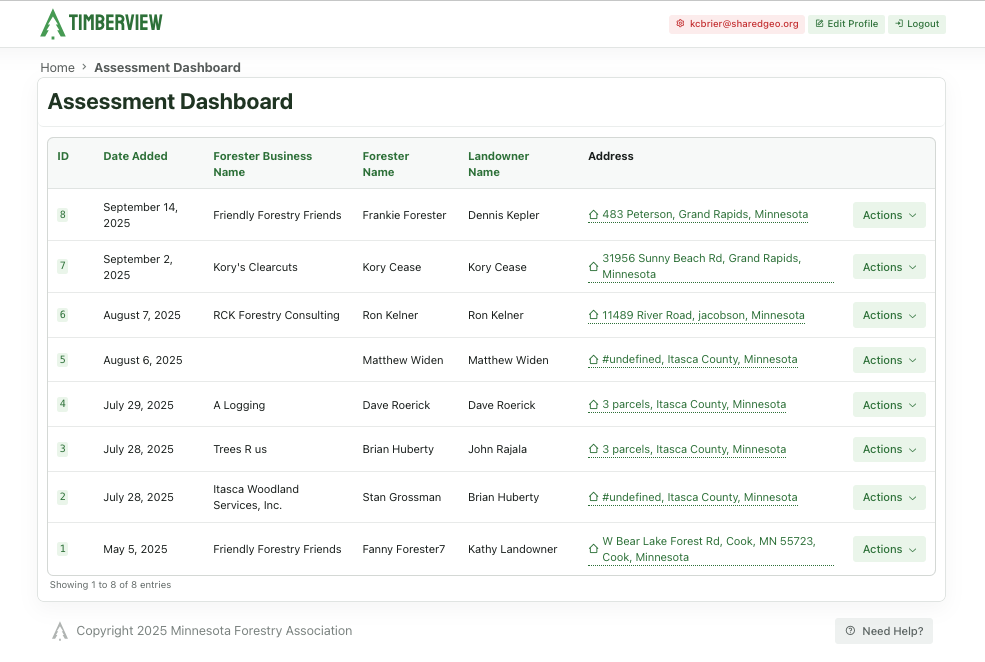
Assessment Dashboard
Review Completed Assessment
Select the action to view assessment to see all the information entered into the completed assessment.
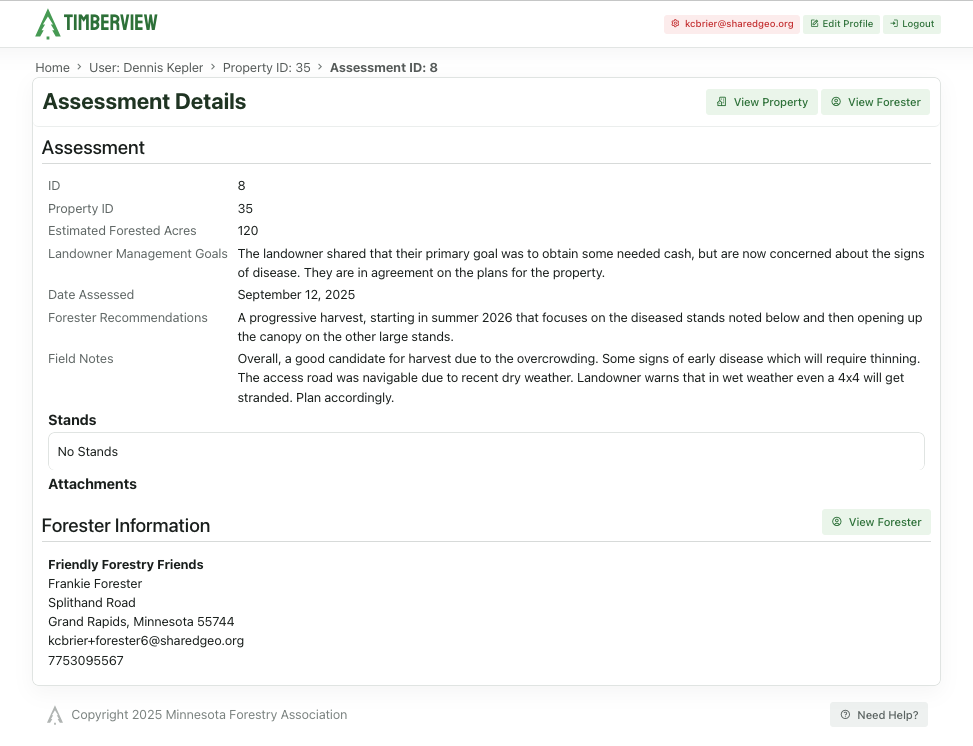
Completed Assessment
Properties
The properties dashboard displays a list of all the properties that have been added to TimberView. Use the search bar to find a property by address. Or click any column heading to sort it in descending order. Click it again to sort in ascending order. The arrow next to the heading will indicate if ascending or descending order. From the Actions menu you can view the property details or the landowner’s profile.
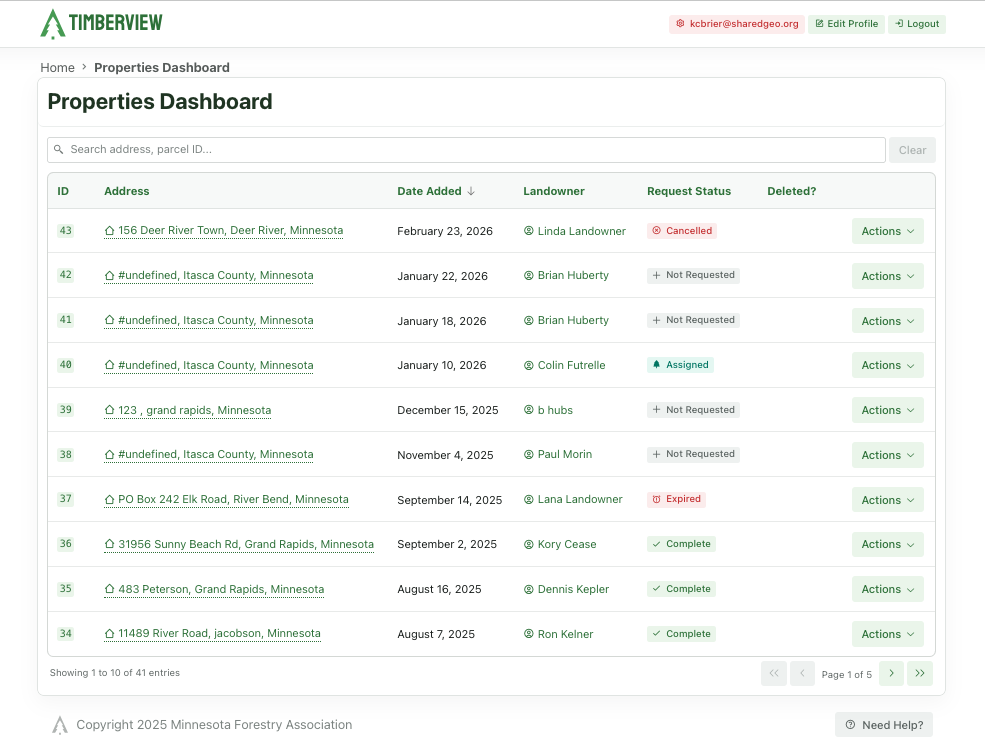
Properties
Manual Forms
Use the dashboard to keep track of forms submitted by mail, delivery, or fax. Manual forms may include assessment requests for landowners who are unable to create a TimberView profile. You can upload .doc, .docx, .pdf, .png, .jpg, .jpeg, and .gif file types. Drag and drop the files or click to browse and select files.
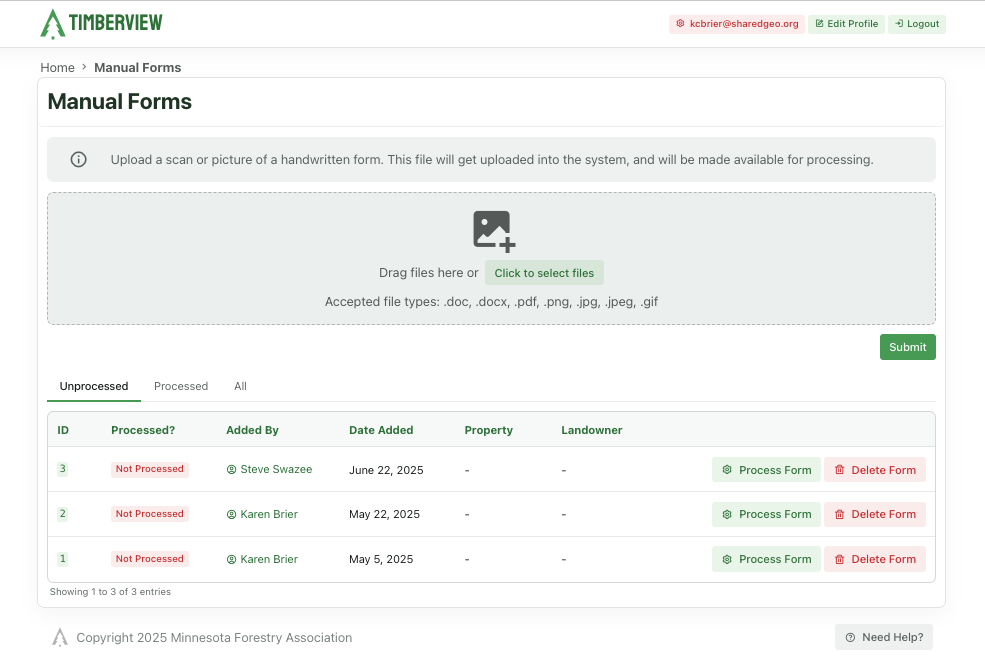
Manual Forms
Once the form is uploaded, it is processed by assigning it to an existing landowner and property. You can also create a new landowner or property if needed.
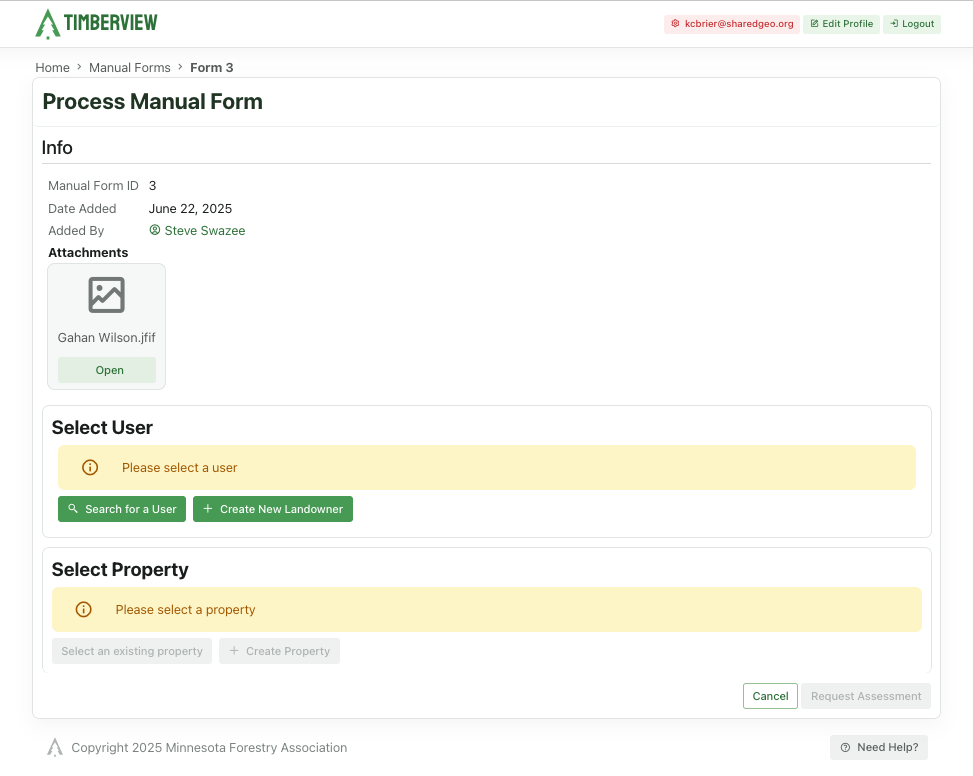
Process Manual Form
The first step in processing a manual form is to associate it with a landowner and a property. You can match them to existing users with a landowner profile and their properties. Type the first three letters of the last name to search. Once you have matched the manual form to a landowner and a property, you will have the option to Request an Assessment.
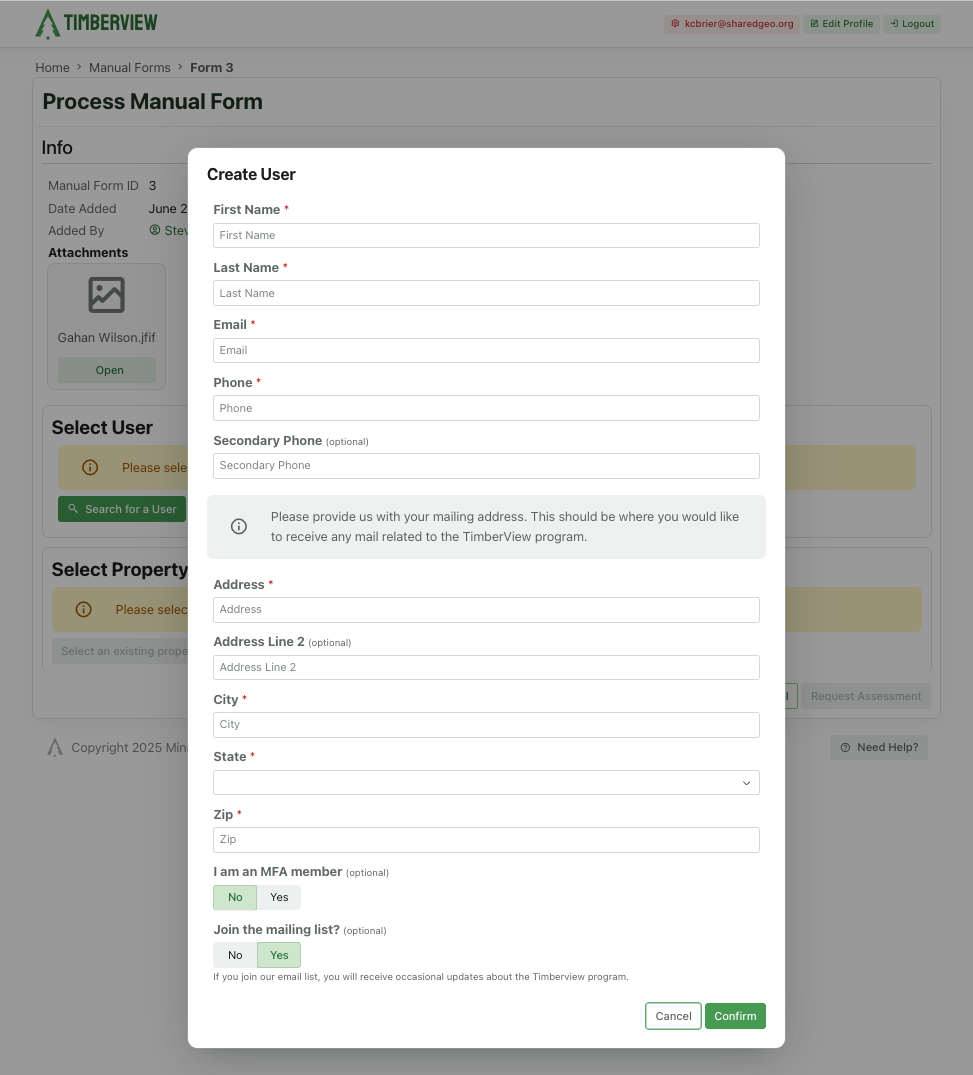
Match Manual Form to a Landowner
Reports
Reports are created periodically to share completed assessments when you reach the reporting limit. Create a report to transmit the assessments to the Department of Natural Resources (DNR) or the Minnesota Forestry Department (MFD).
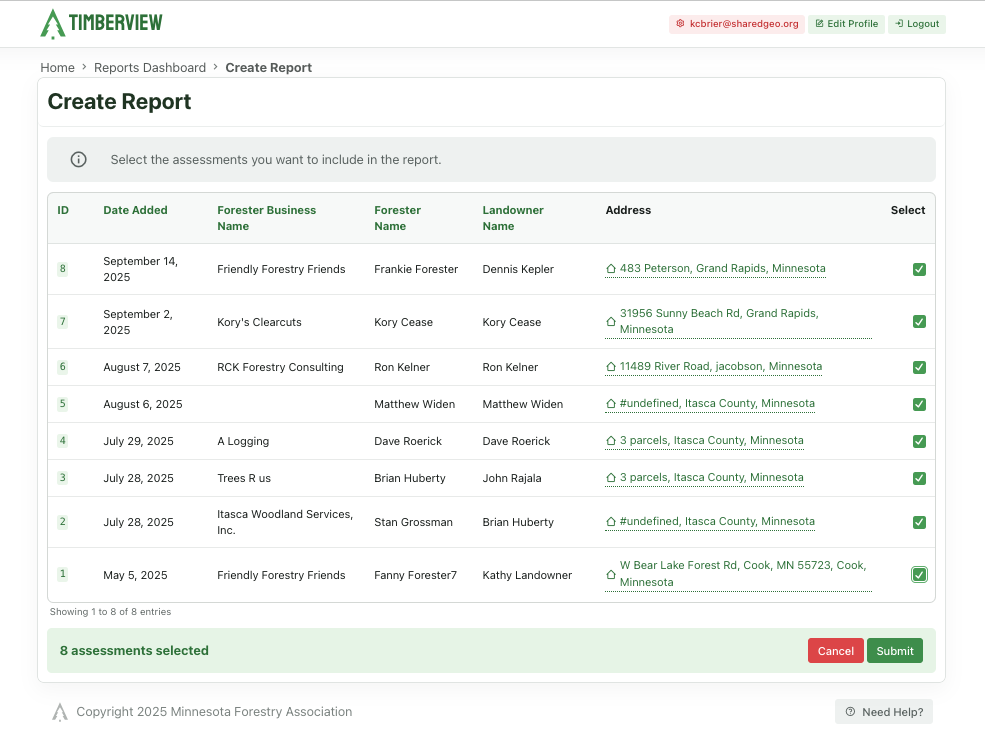
Create Report
Once created, the report is available as a PDF to print, save, or share.
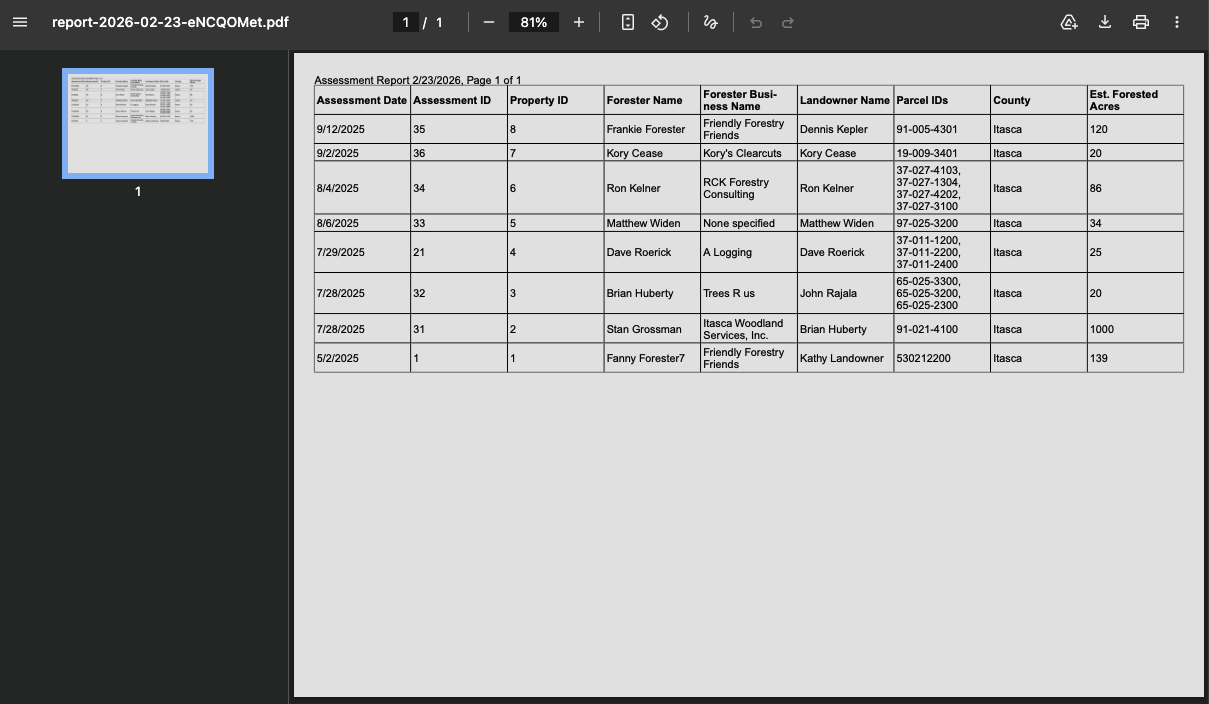
Print. Share, Save Report
You can add an invoice number to a report to aid in tracking.
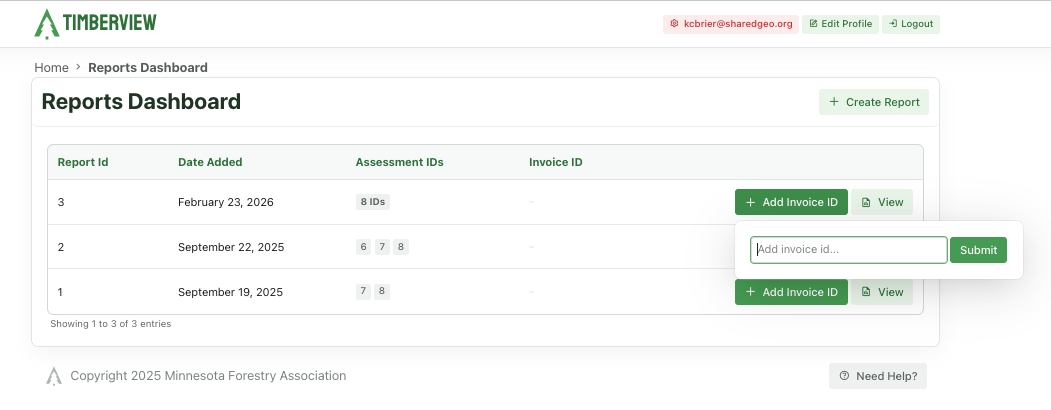
Add an invoice number
The Reports Dashboard displays all reports that have been created, with any invoice numbers that have been added.
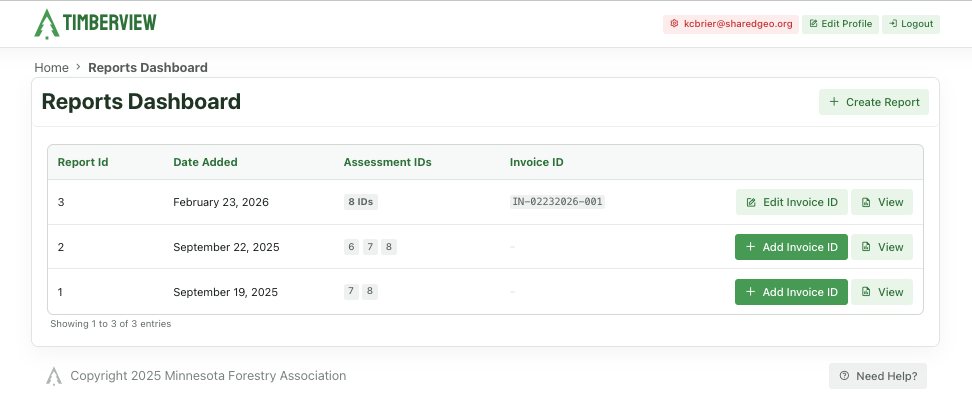
Reports
You can add an invoice number to each report to track .
Reports
MFA Member Map
The map displays parcels, parcel points, and watershed lines by default. Use the layers icon in the top right corner to turn these layers on or off and to add other available data layers.
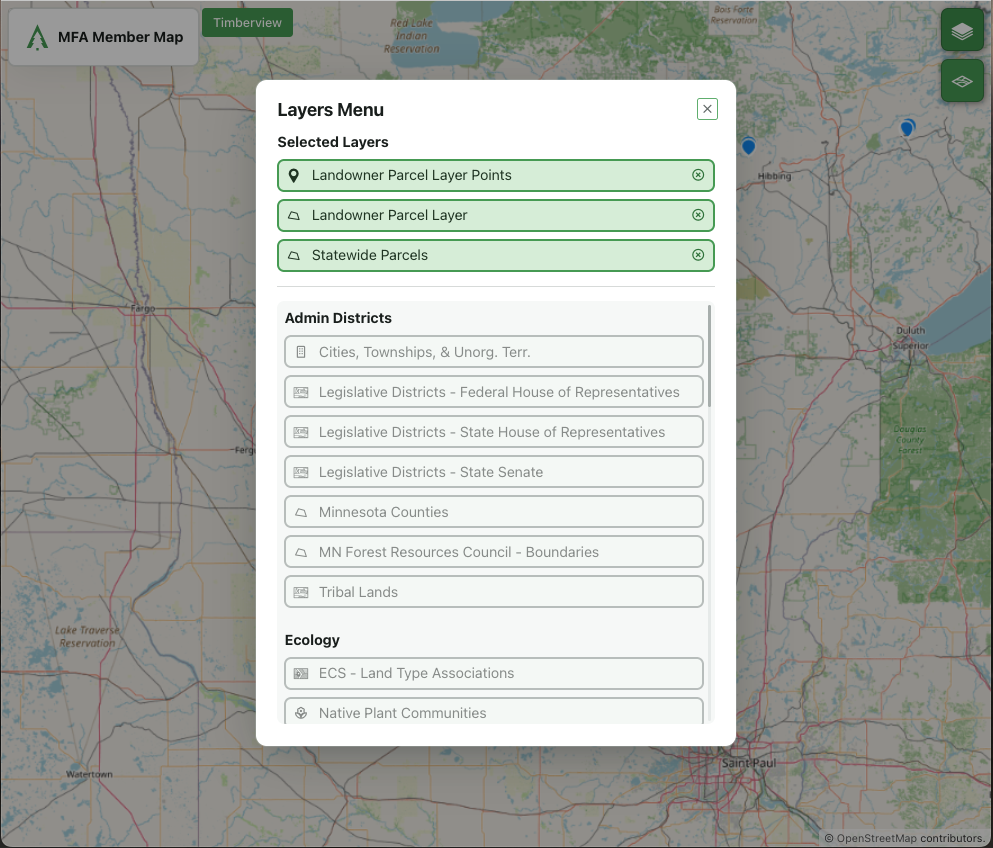
MFA Map Layers
Use the basemap icon in the top right corner to select from the available map options.
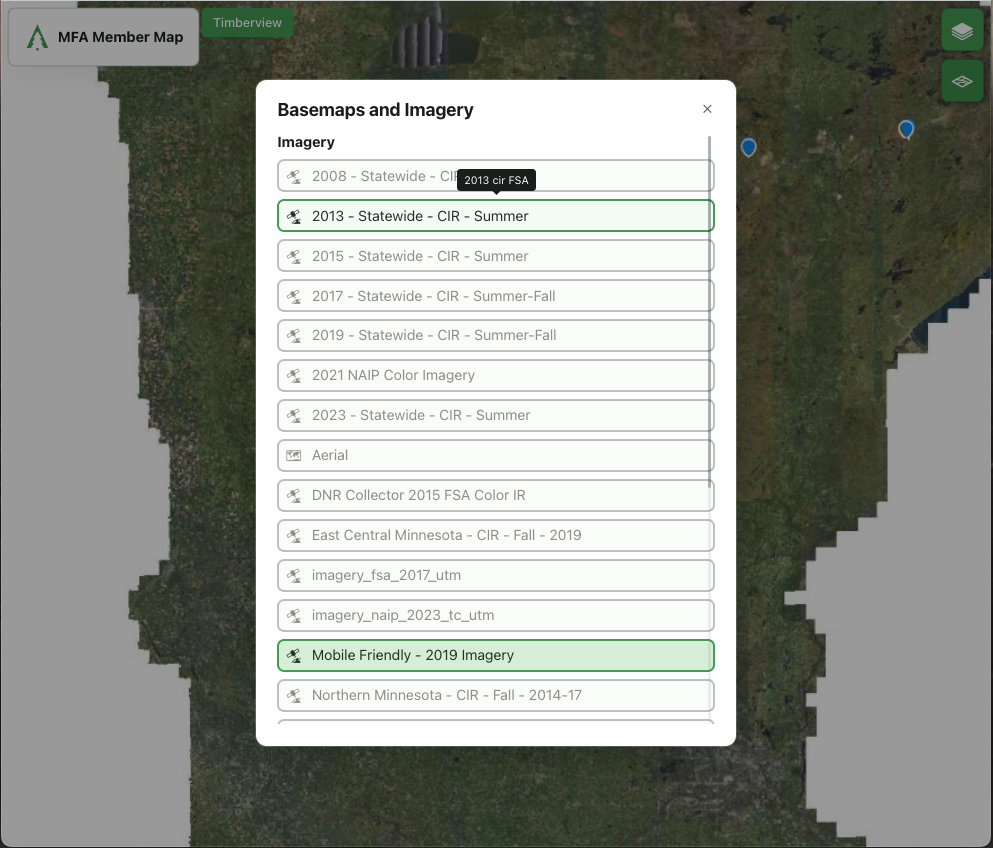
Select Basemap
Use the TimberView link at the top left to close the MFA Member Map and return to the Admin Menu.
Feedback Dashboard
All member feedback goes to the Admin and is displayed on the Feedback Dashboard.
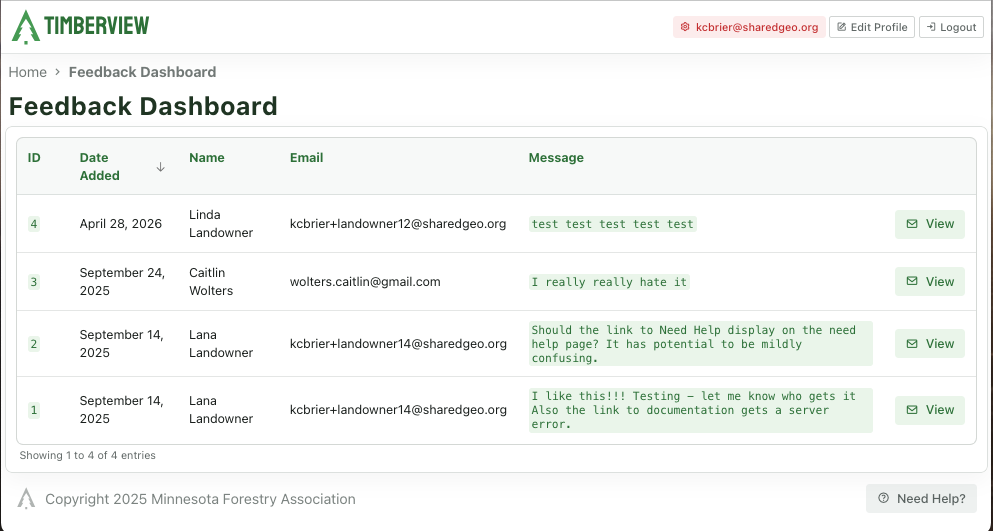
Feedback Dashboard
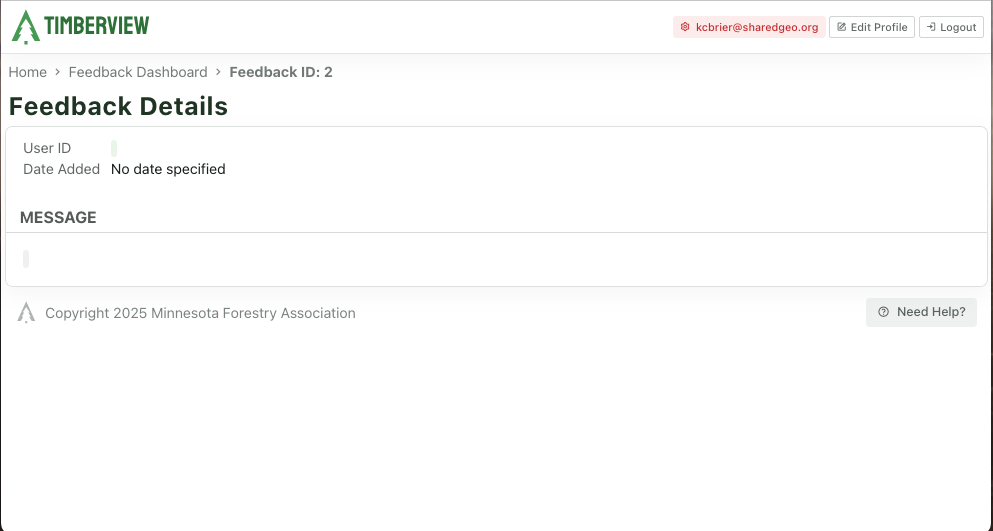
Click View to see the details
Select Basemap
Use the TimberView link at the top left to close the MFA Member Map and return to the Admin Menu. Last Updated: Sep 10, 2026